The time has come for you to be able to send all your responses directly into Google Sheets.
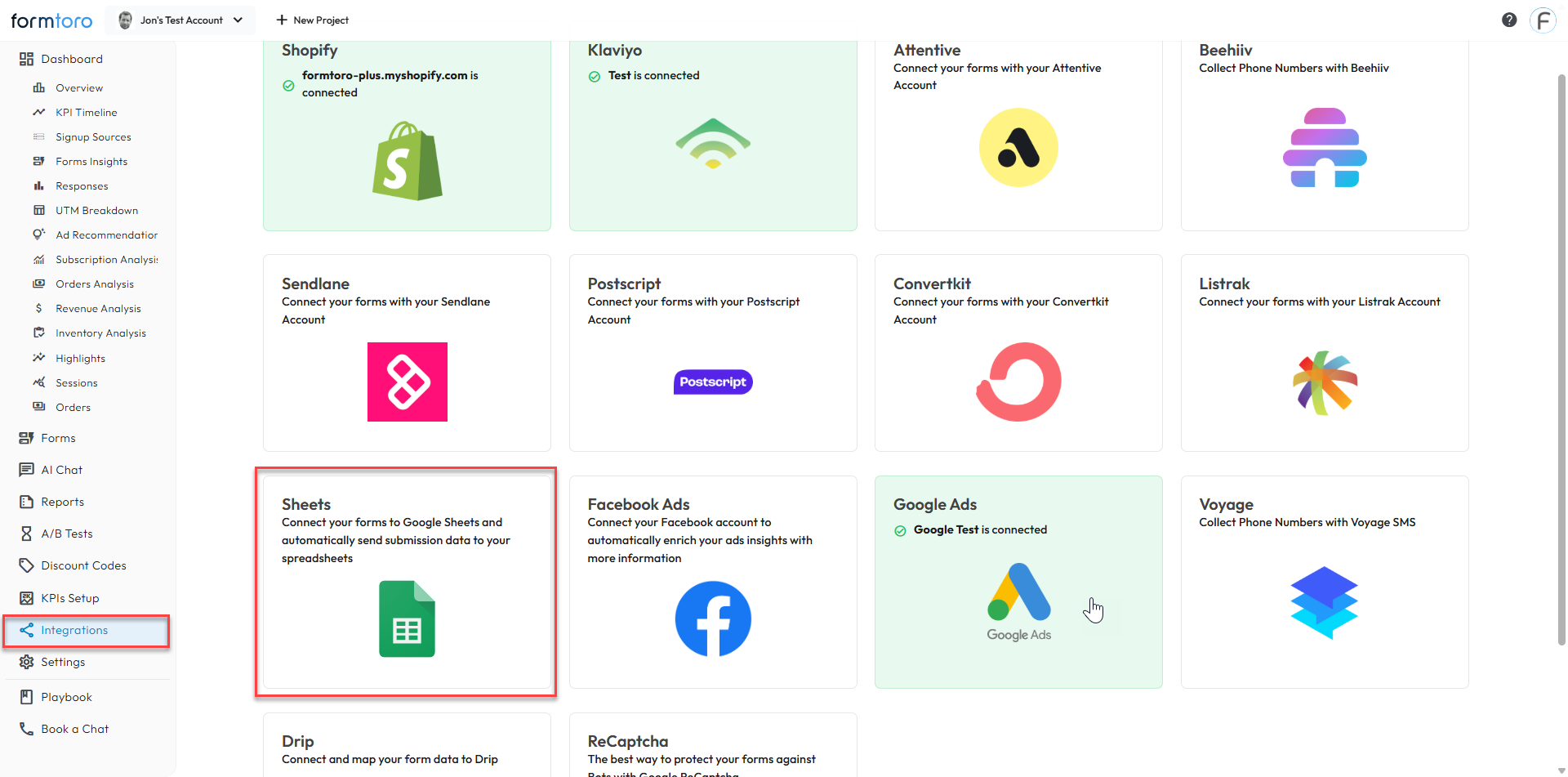
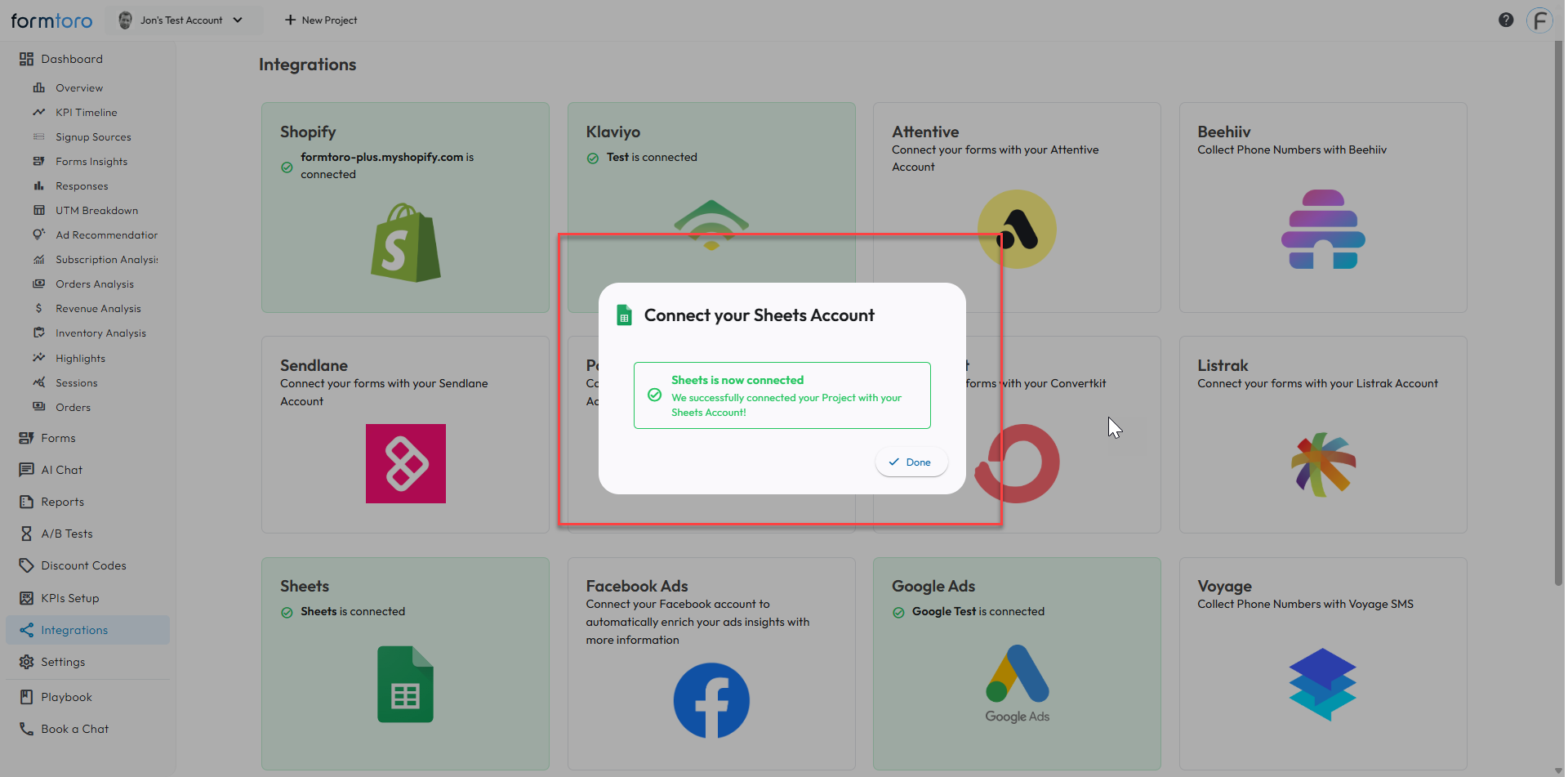
1. Go to the integrations tab on the left hand side then click Sheets
2. You'll be prompted to name your connection
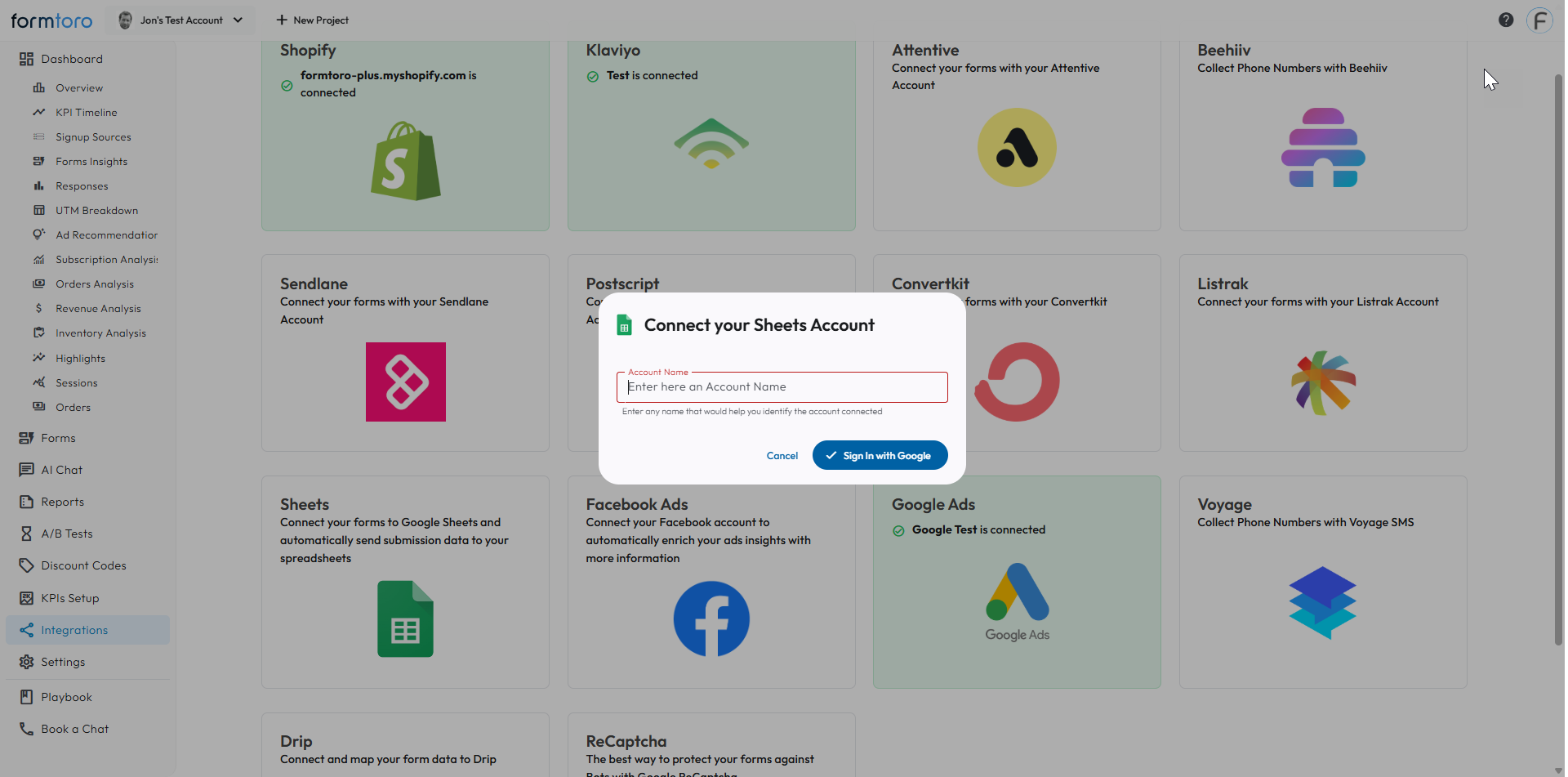
3. Once named click Sign in with Google
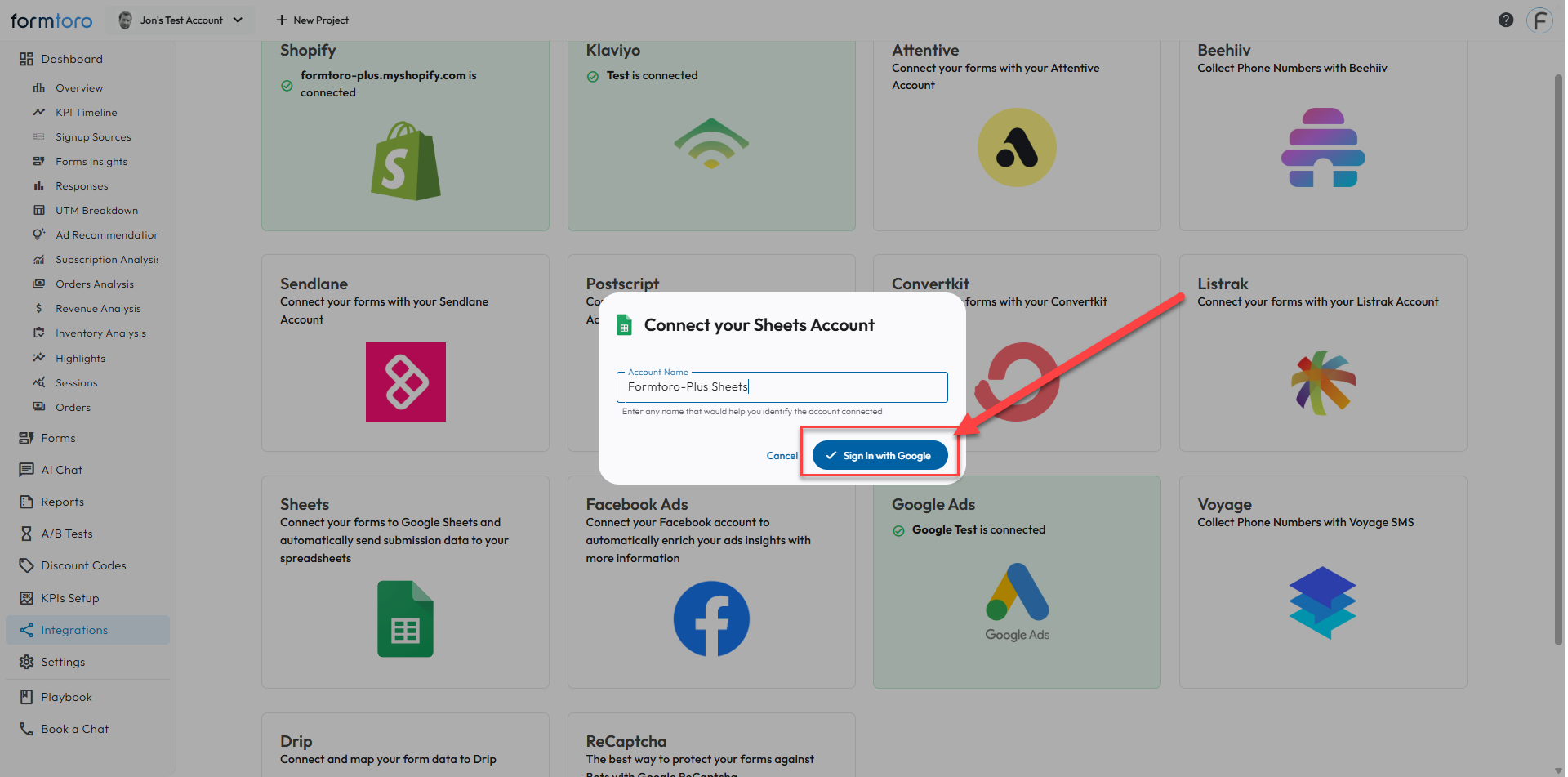
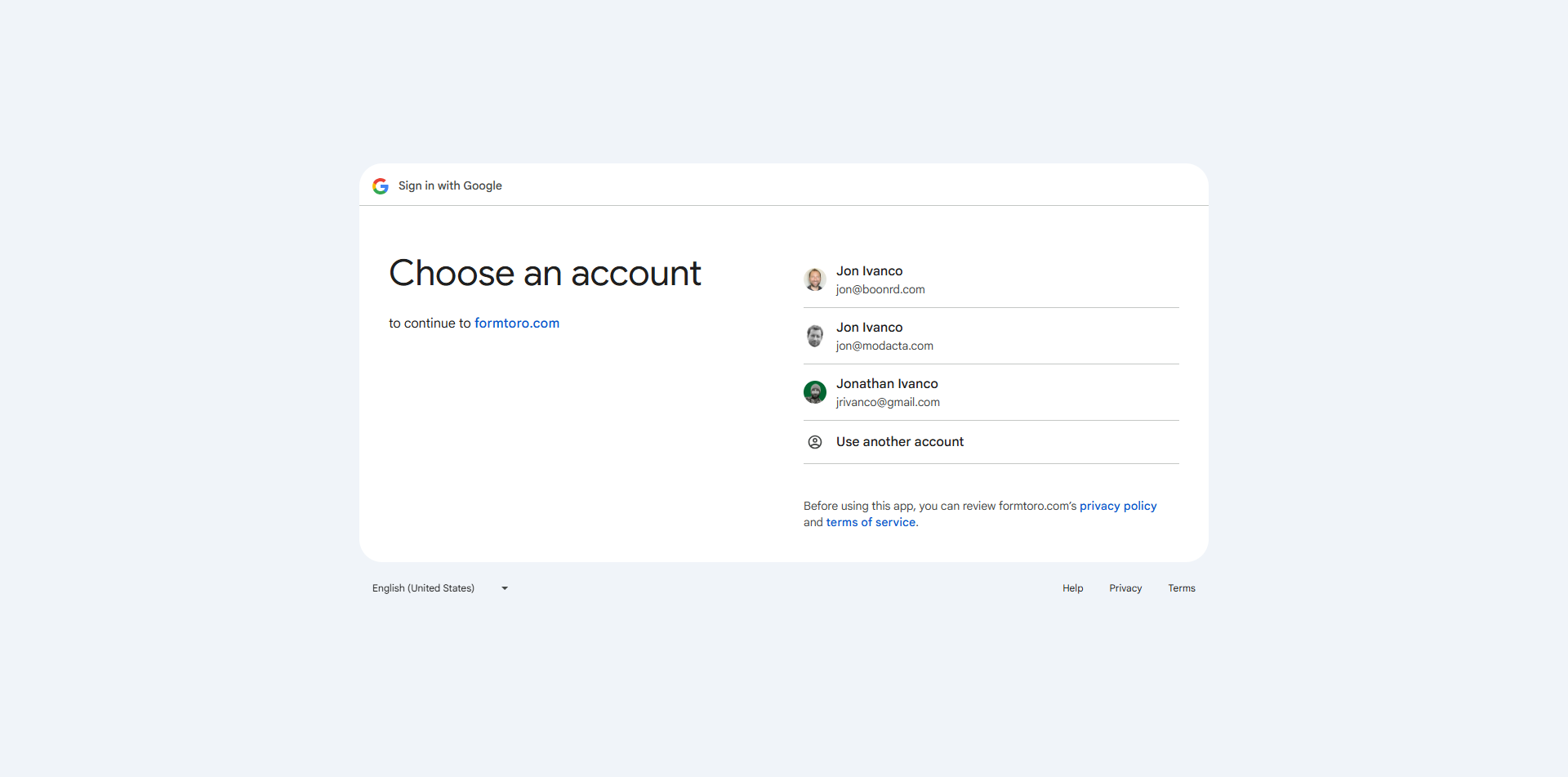
4. Select your account
5. You'll see a warning, click "Advanced"
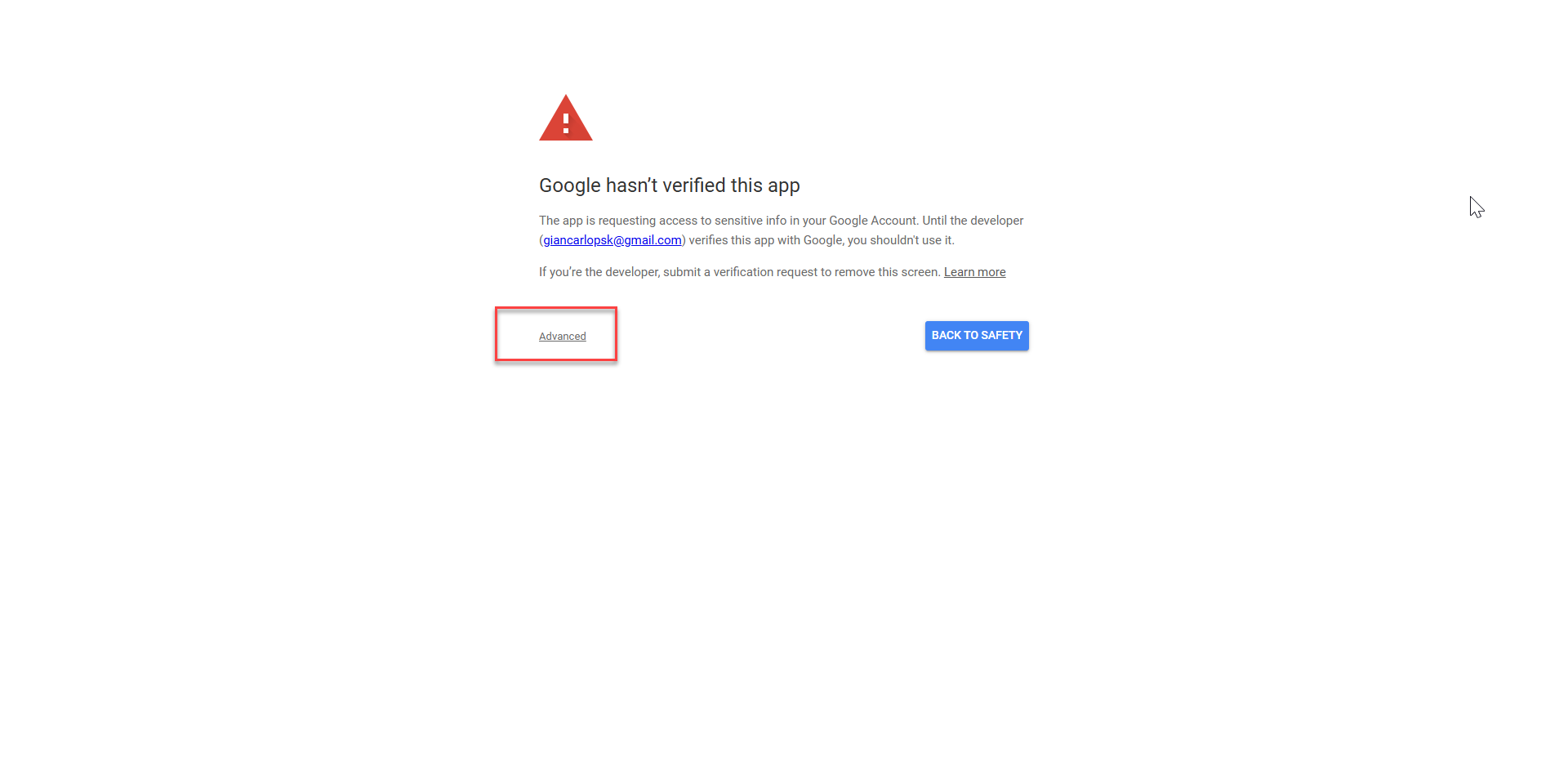
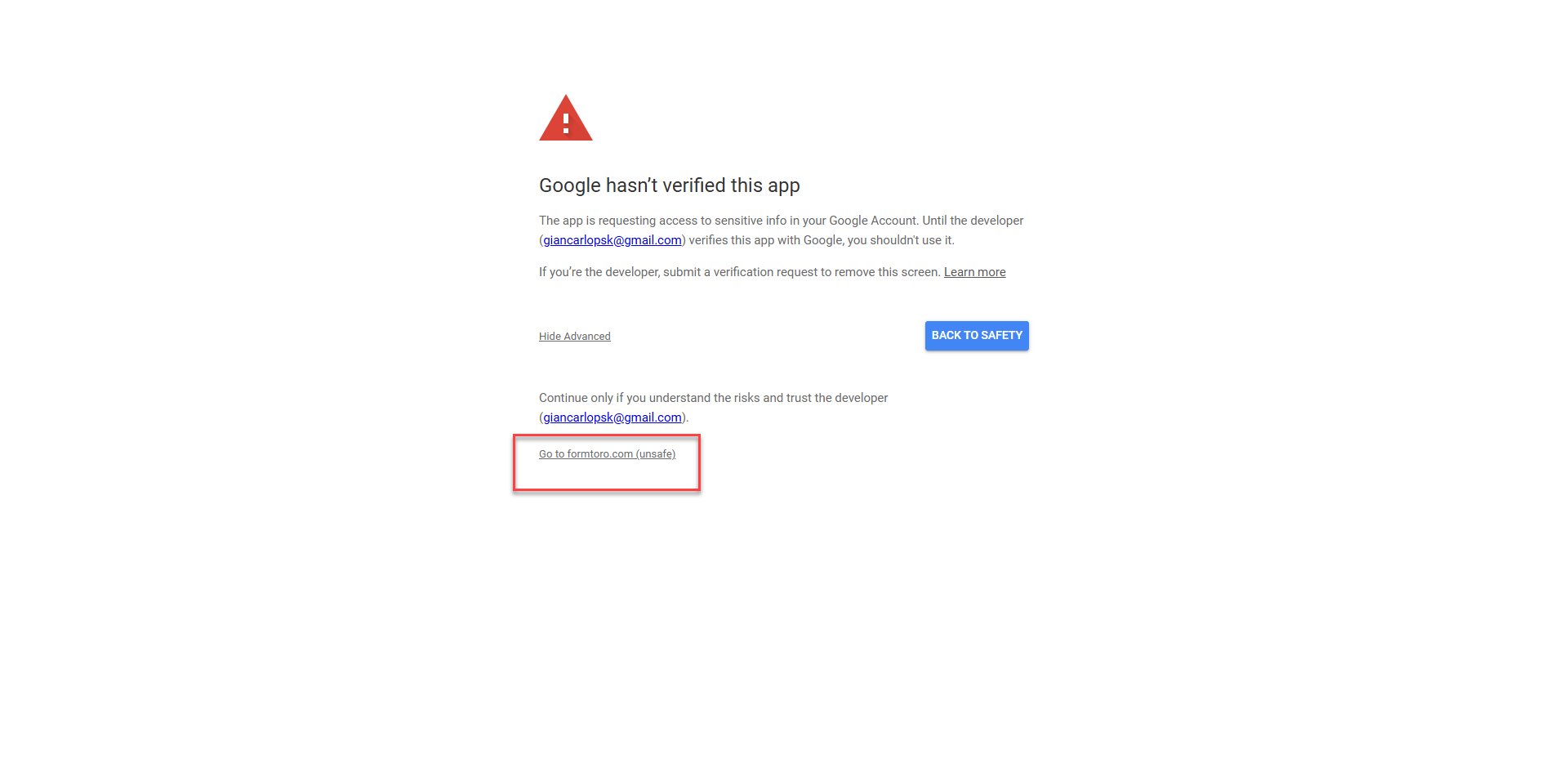
6. Then click "Go to formtoro"
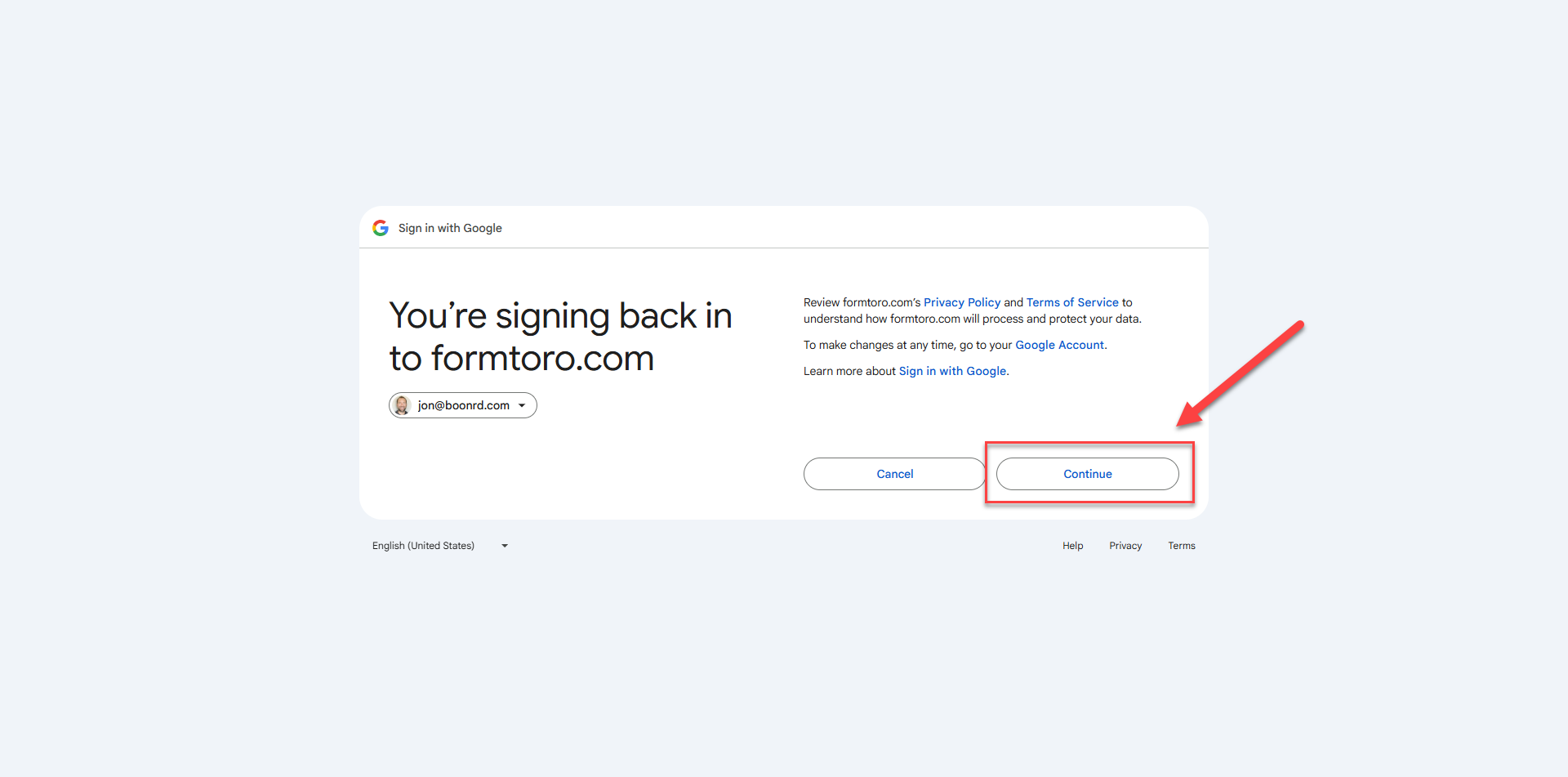
7. Click "Continue"
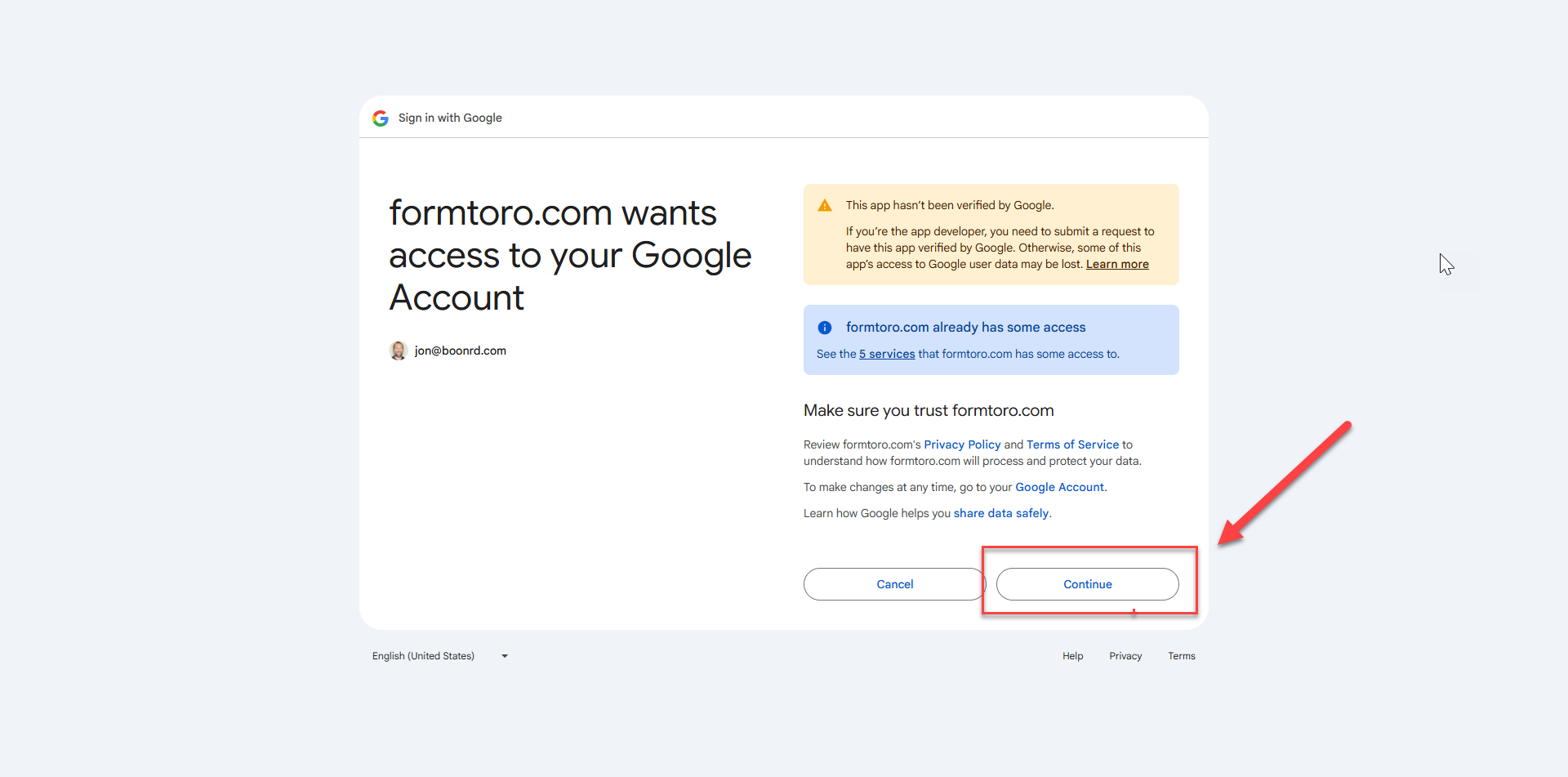
8. We only ask for the permissions we need, nothing more, review and click continue
9. You'll be redirected to Formtoro with confirmation that your account has been connected
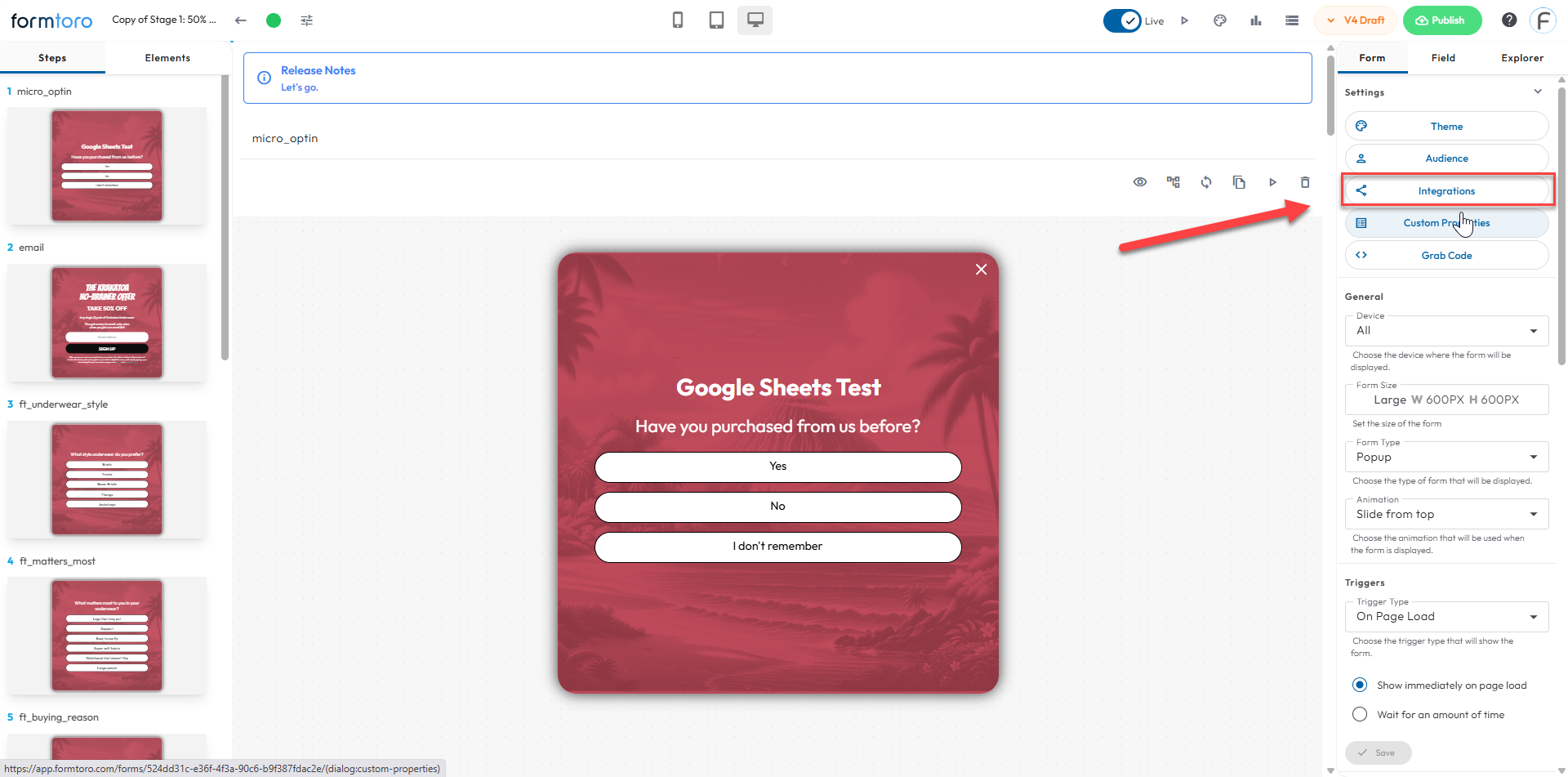
10. Open a Form then click on integrations in the right menu bar
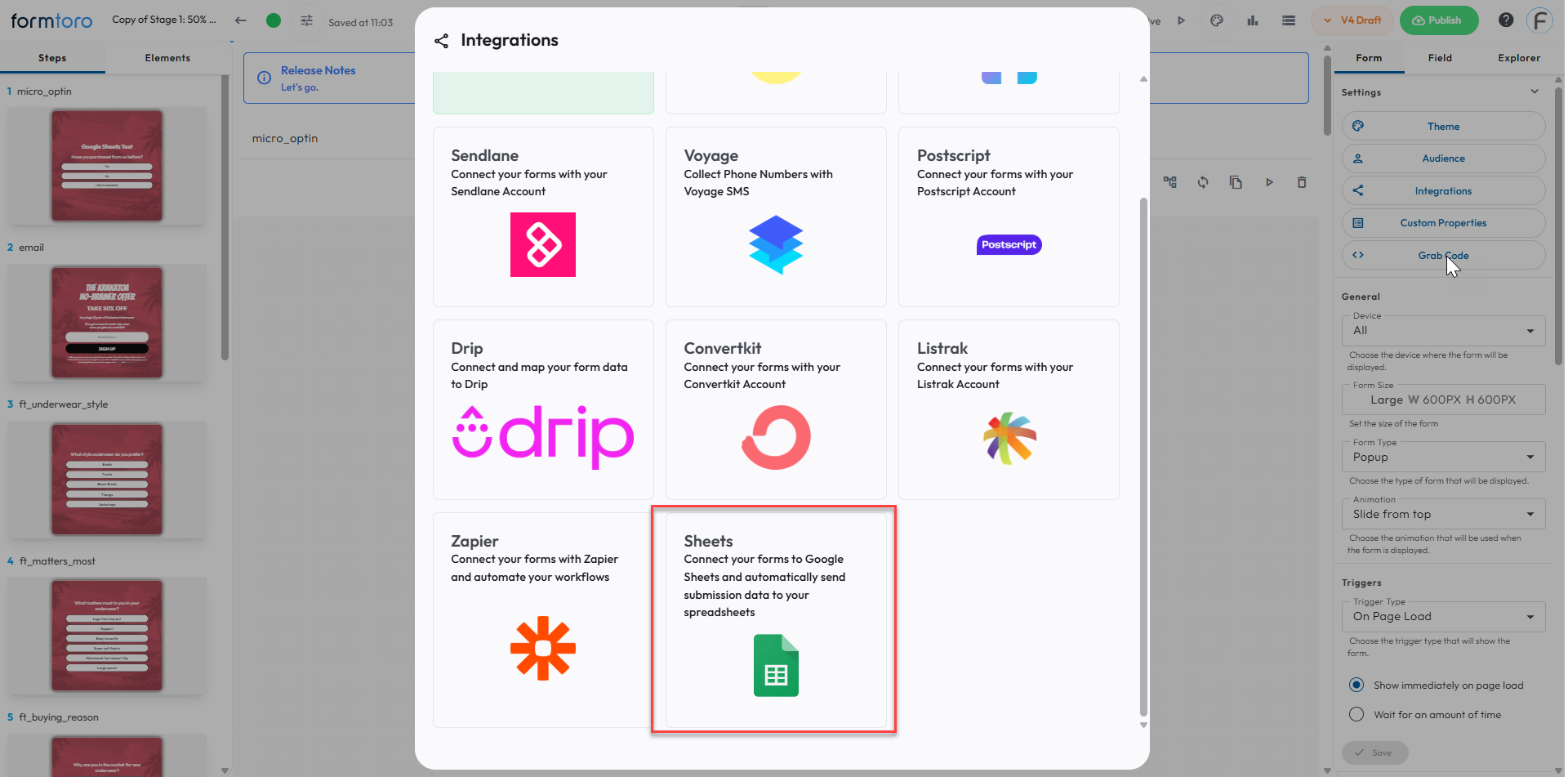
11. Scroll down and click on "Sheets"
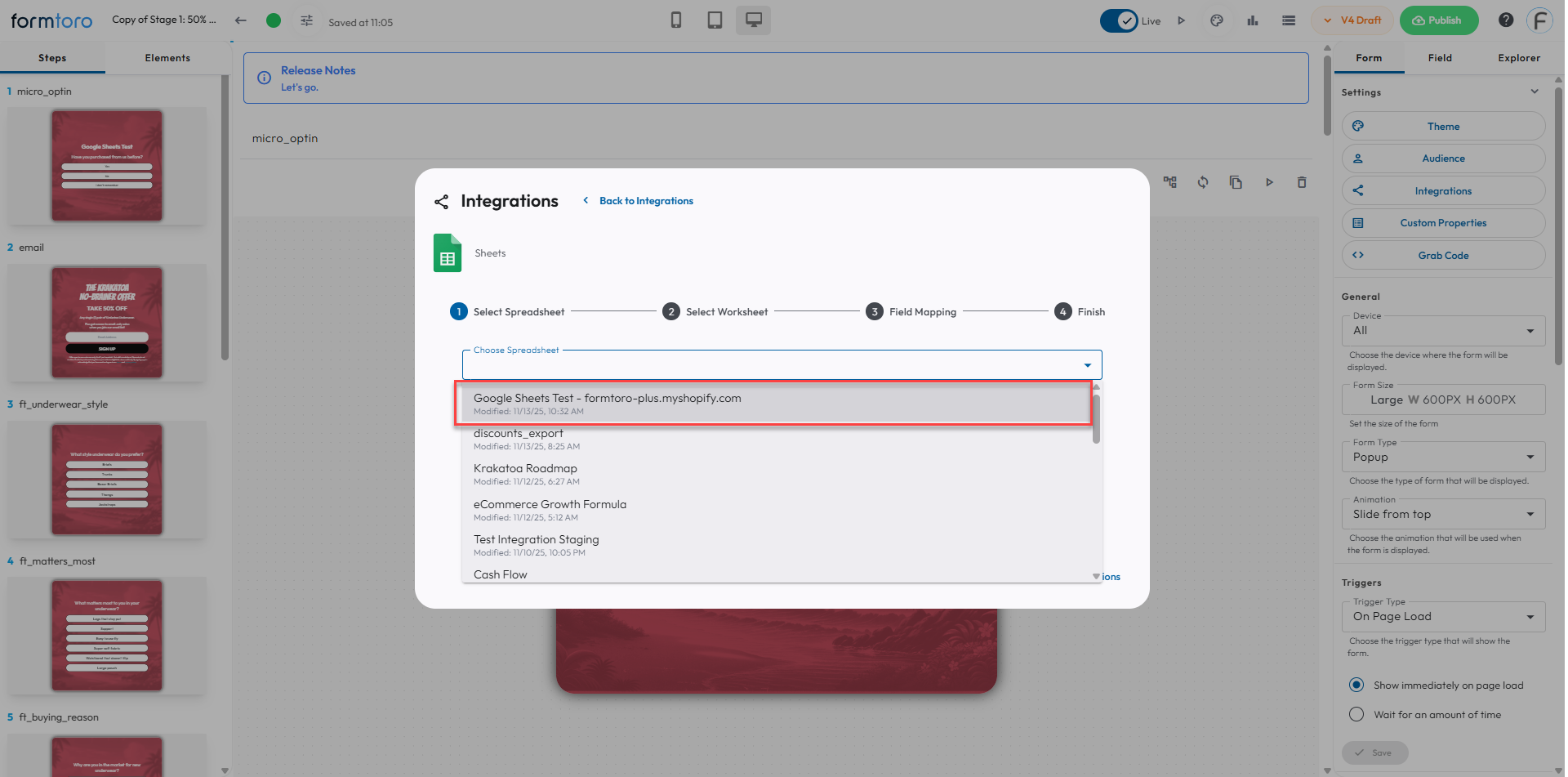
12. We'll pull the last 20 edited sheets from your account if you haven't created a sheet for your form yet, do so now, you just need a title
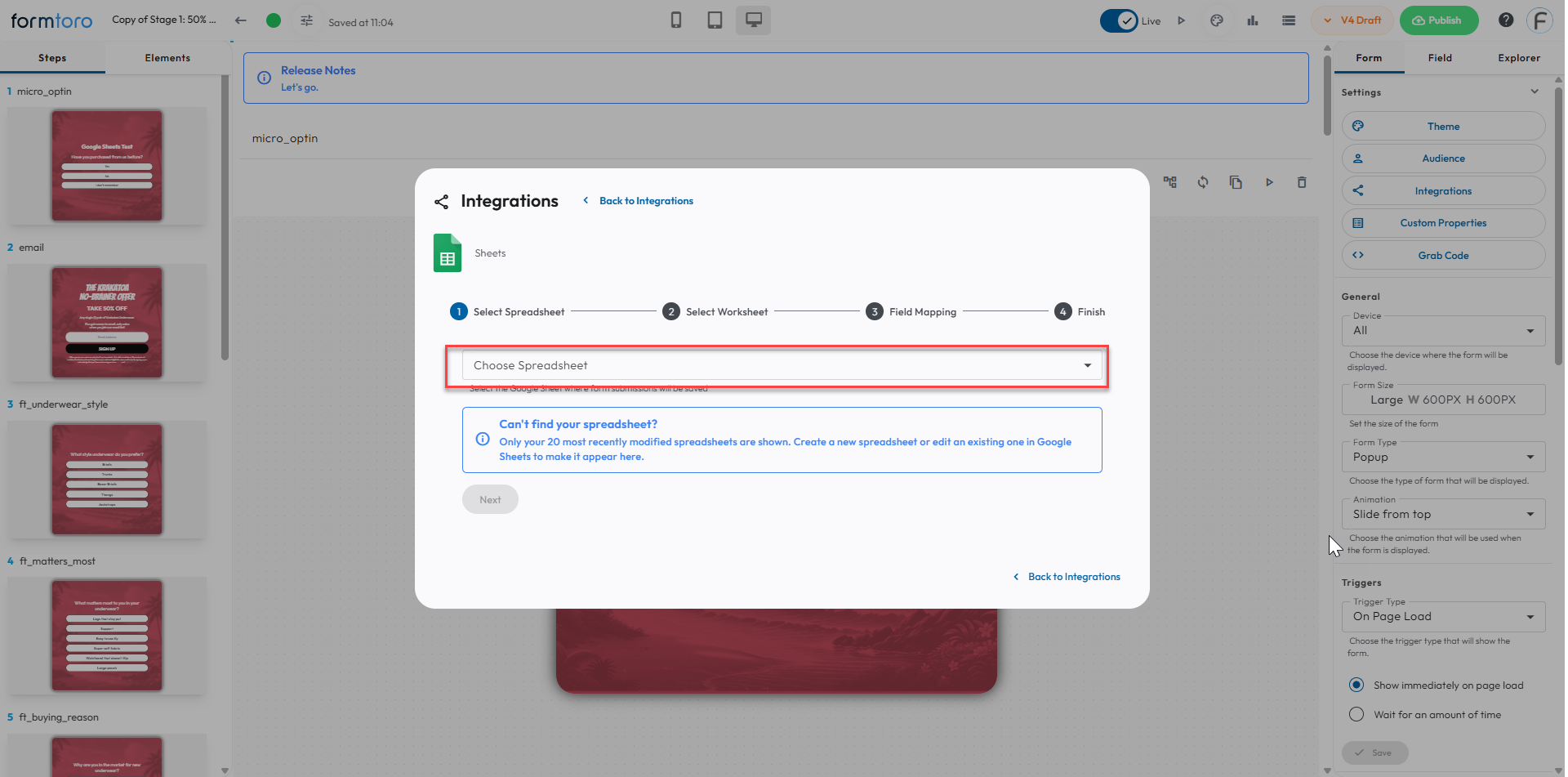
13. Select your sheet
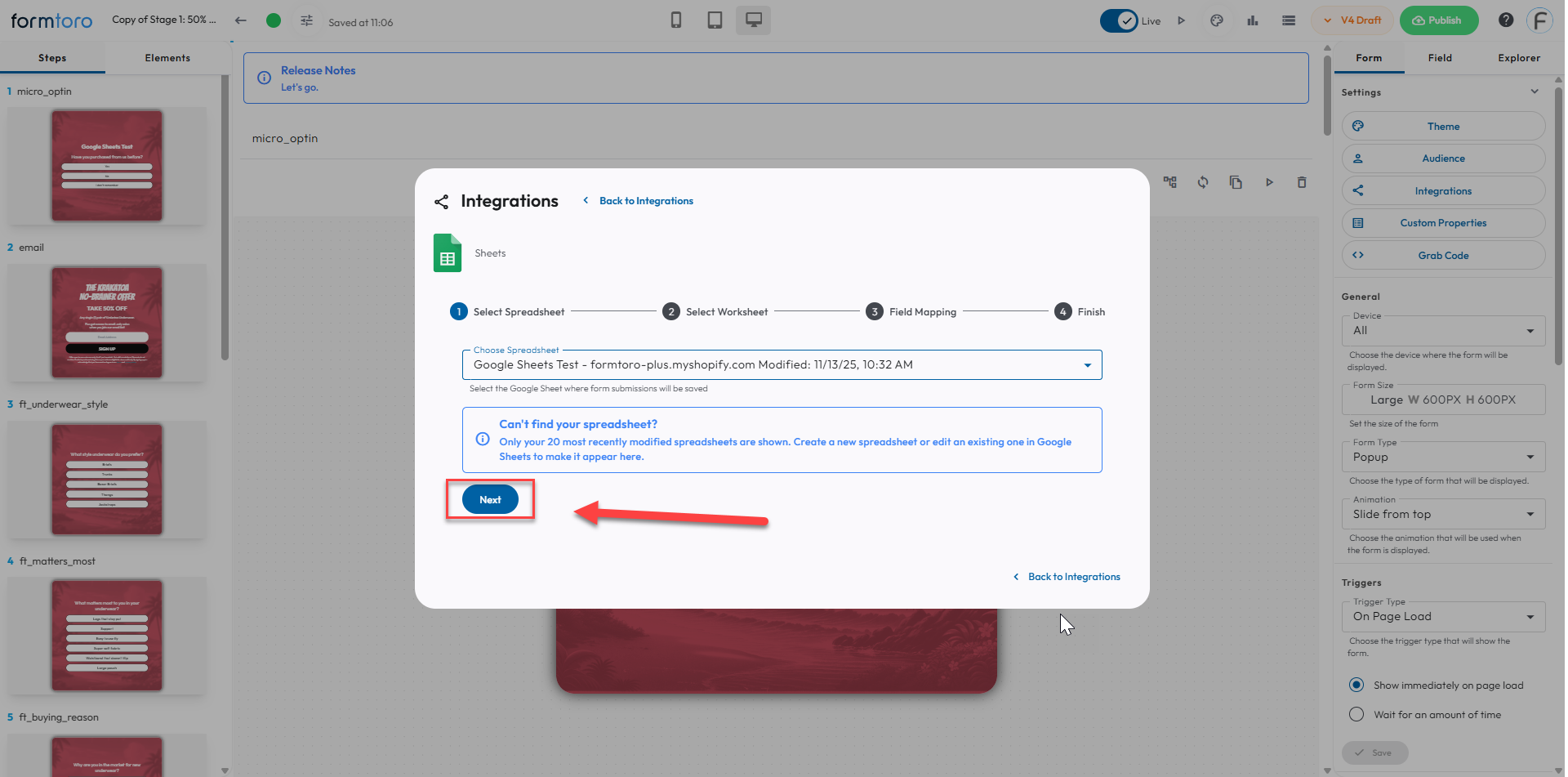
14. Click Next
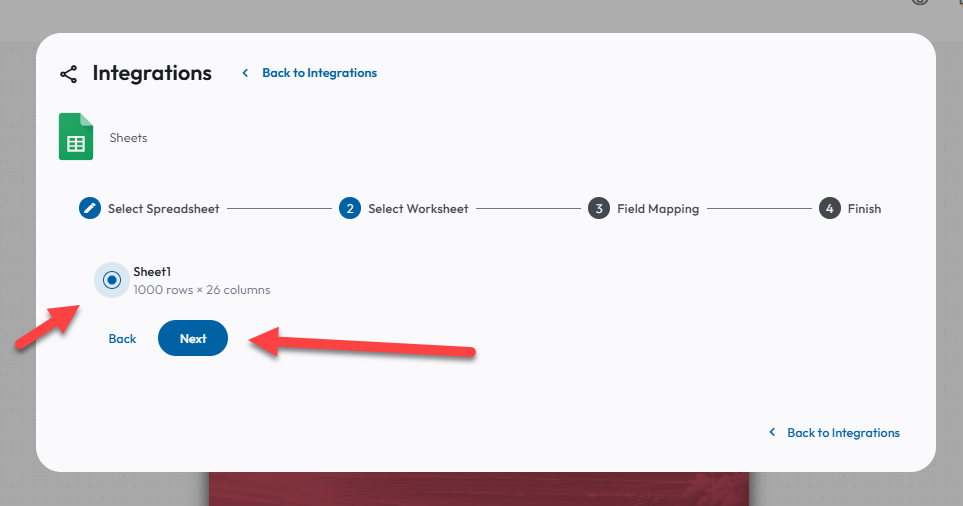
15. Select your Sheet within your sheet, then click next
16. Your fields will already be mapped based on the steps and ft_ for formtoro will be added to all steps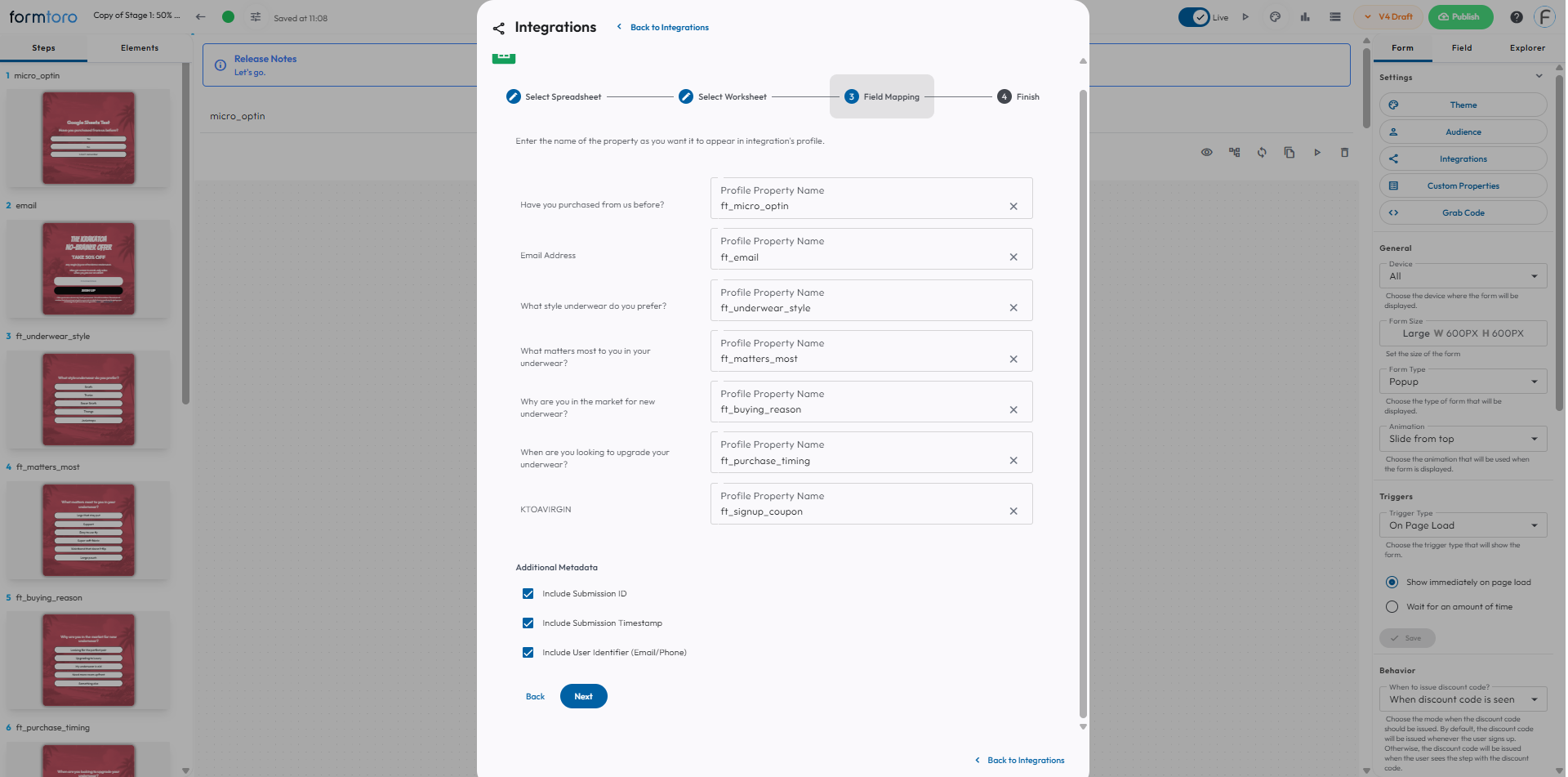
From here double check everything looks correct then click next at the bottom
17. You'll get a confirmation that everything is connected
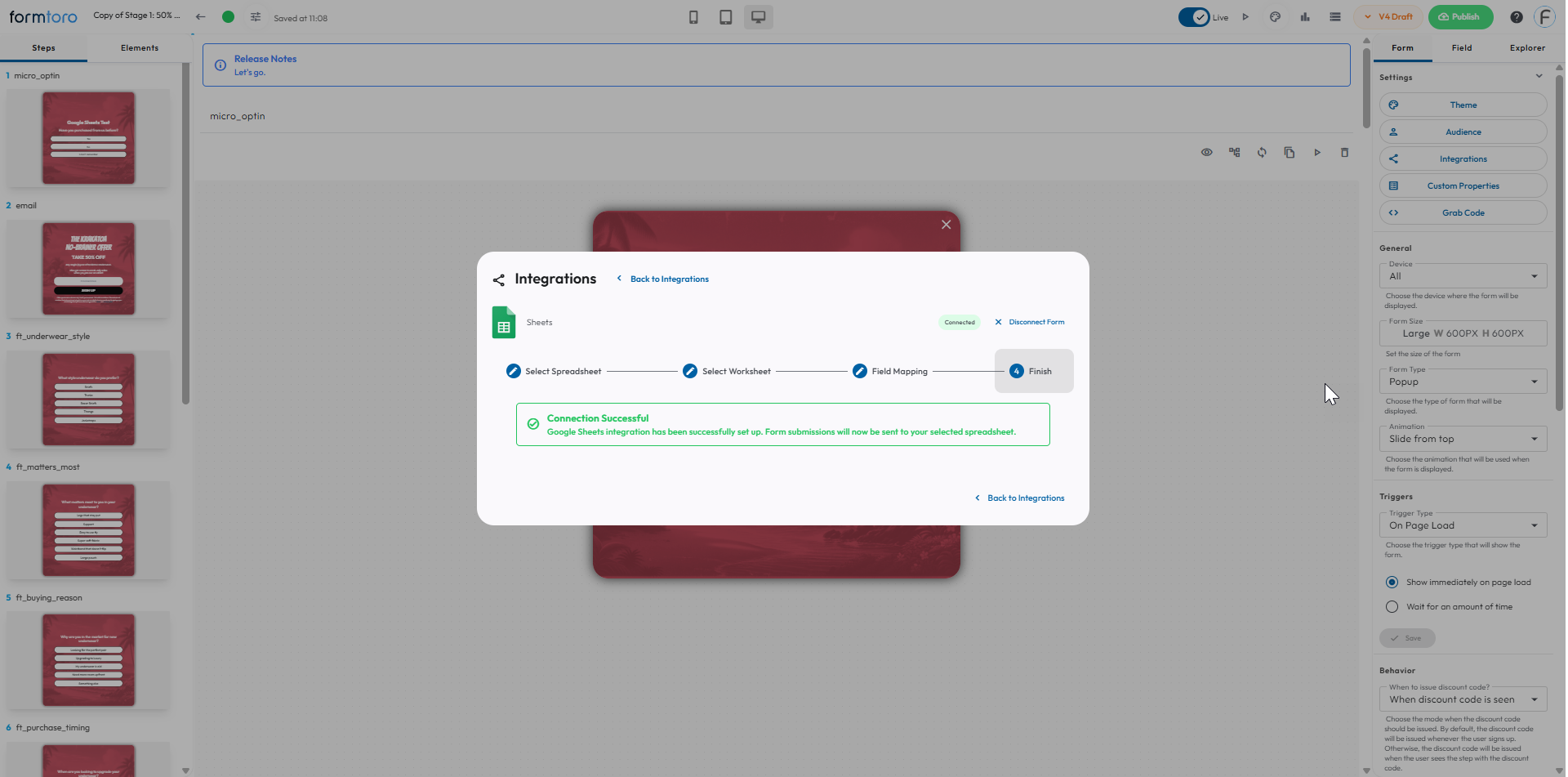
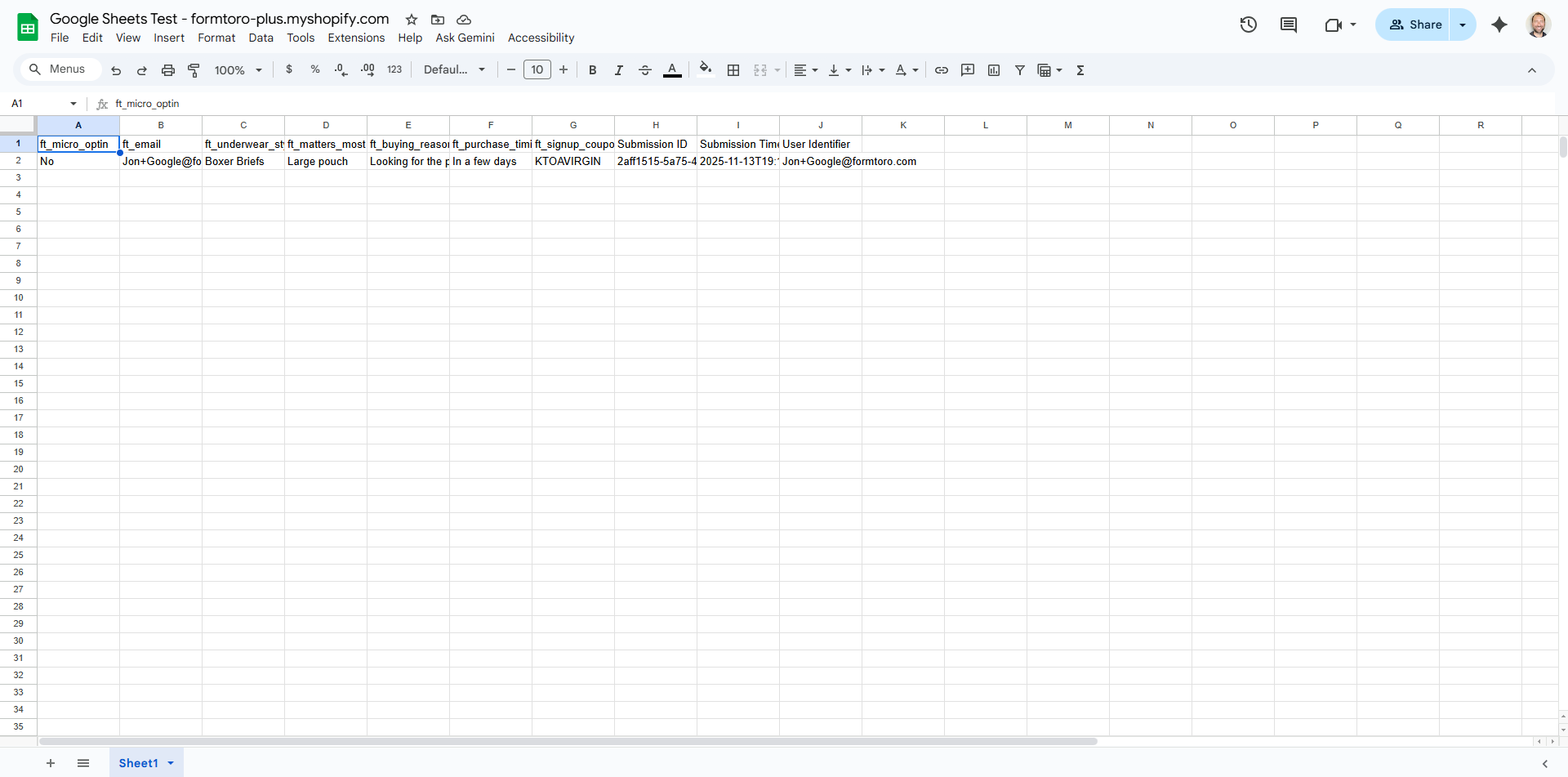
18. Turn the form live and when you submit your entries will show in your google sheet - all columns will automatically me mapped and named
Was this article helpful?
That’s Great!
Thank you for your feedback
Sorry! We couldn't be helpful
Thank you for your feedback
Feedback sent
We appreciate your effort and will try to fix the article